
How to Customize a Framer Template: Step-by-Step Guide (2026)

Quick answer
To customize a Framer template well, update the message first, then brand colors, typography, images, links, forms, and metadata. Keeping the original structure intact at first helps preserve the design quality that made the template useful.
Key takeaways
Start with copy and positioning before layout changes.
Replace every placeholder image, link, and contact detail.
Review mobile and SEO settings before publishing.
Framer templates give you a professional starting point — but the goal is to make it look and feel completely your own. A well-customized Framer template should be indistinguishable from a custom build. This step-by-step guide walks you through the entire process, from remixing the template to hitting publish on your custom domain.
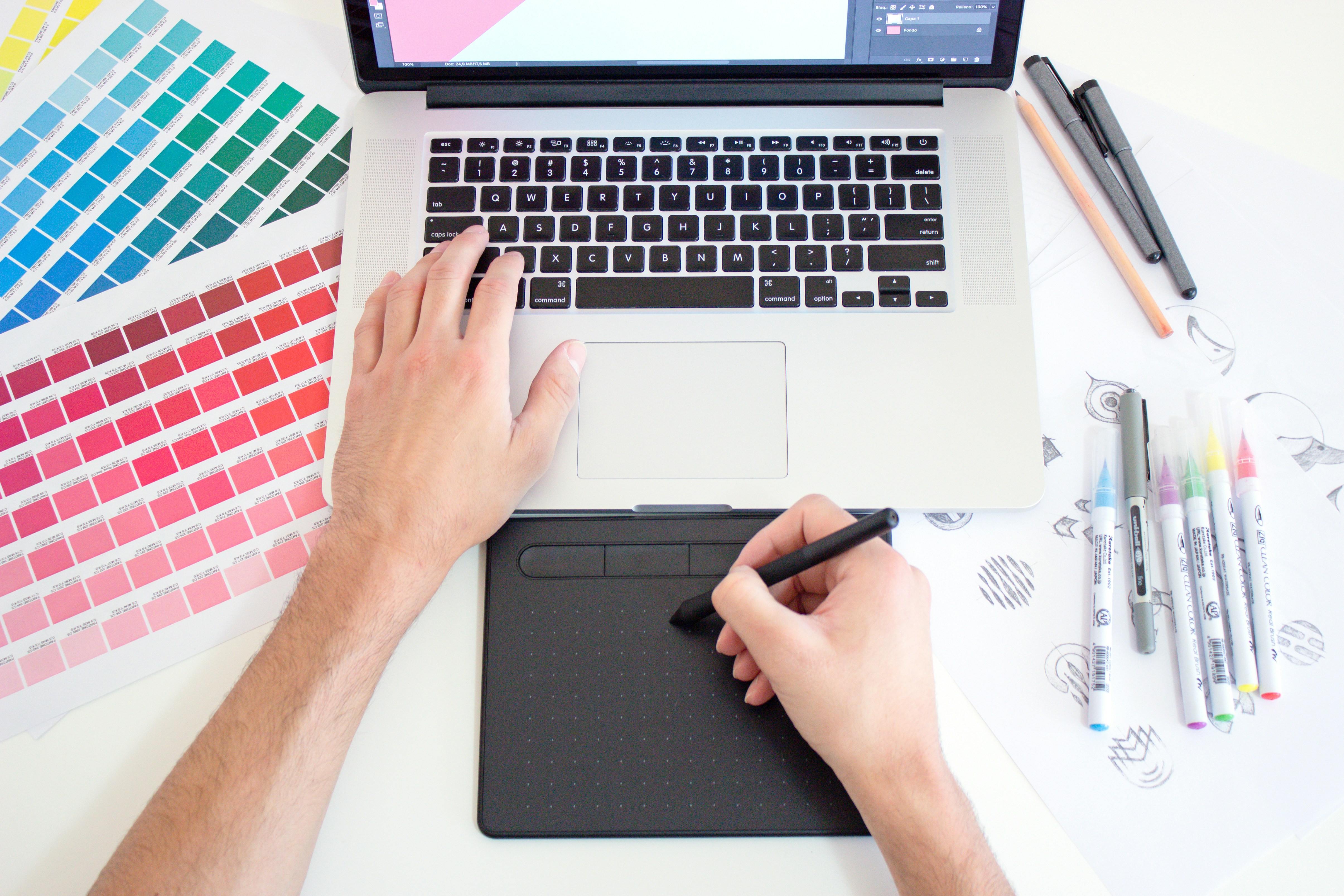
Step 1: Choose and Remix Your Template
Start by browsing the EV Studio template library and finding a design that matches your industry and visual direction. When you find the right one, click the Remix button. This creates a personal copy of the template directly in your Framer account — the original is untouched and you own your copy completely. From here, every change you make is yours to keep.
Step 2: Update Your Brand Colors
Open the canvas and look for your project color styles in the right panel under Styles. Replace the primary, secondary, and accent colors with your brand palette. Because Framer templates use color tokens throughout, changing one value updates every button, heading, background, and border that uses that color — all at once. Start with your primary brand color and watch the whole site shift.
Step 3: Change Your Fonts and Typography
Most Framer templates use one or two typefaces. To match your brand, open the text styles panel and swap the font families. Framer supports Google Fonts, Adobe Fonts, and custom font uploads. Update the heading font and the body font separately to maintain a clean typographic hierarchy. Avoid mixing more than two font families — the best-designed sites keep it simple.
Step 4: Replace Images and Media
Click any image on the canvas to select it, then drag and drop your own image from your computer or paste a URL. Framer automatically handles responsive sizing — your images will look crisp on desktop, tablet, and mobile without any extra configuration. For hero backgrounds and feature images, use photos at least 1400px wide for sharp display on large screens. Add meaningful alt text to every image for better accessibility and SEO.
Step 5: Edit Your Copy and Content
Select any text block on the canvas and click to edit. Replace placeholder headlines, subheadings, and body copy with your actual content. Your homepage headline should communicate one clear value proposition — who you help, what you do, and why it matters. Keep it specific and avoid generic phrases like leading innovation. Write in a voice that sounds like a real person, not a press release.
Step 6: Connect Your Domain and Publish
Once your site is ready, go to Settings in Framer and add your custom domain. If you do not have a domain yet, you can publish to a free framer.app subdomain first and switch later at any time. Hit Publish and your site goes live instantly — no server setup, no FTP, no hosting configuration. Framer handles all of that for you automatically.
Pro Tips for a Polished Result
A few small details separate a template from a site that feels truly custom. Replace every piece of placeholder text — especially in the footer, 404 page, and meta descriptions. Test your site on an actual mobile device before publishing, not just the browser preview. Add your real contact details, working social links, and a functional contact form. And if you want your site to rank on Google, fill in the page title and meta description for every page — this takes five minutes and makes a real difference in search visibility.
Why Customize a Framer Template?
Framer templates give you a professional starting point — but the goal is to make it look and feel completely your own. A well-customized Framer template should be indistinguishable from a custom build. This step-by-step guide walks you through the entire process, from remixing the template to hitting publish on your custom domain.
Need a new website or Template customization?
Share some info about your website or business and we will get back to you within one hour or less.

Book Intro Call
This quick call is a chance for us to learn more about your goals, answer any questions, and see how we can best support your project.
Istaiq Ahmed